MEPCO Duplicate Bill 2026 – Download and Print Online
If you have lost your electricity bill, your paper bill has not arrived, or you need another copy for payment, you can use the online billing service to access your MEPCO Duplicate Bill. The online service allows consumers to view their available electricity bill and print or save a copy for their records.
MEPCO stands for Multan Electric Power Company and supplies electricity to consumers across several districts of South Punjab. Its online billing service is available through the official Power Information Technology Company (PITC) portal.
You can check your bill here: Official MEPCO Bill Portal.
This guide explains how to check your bill, download it as a PDF, print a paper copy, find your reference number, and solve common problems.
How to Check MEPCO Duplicate Bill Online
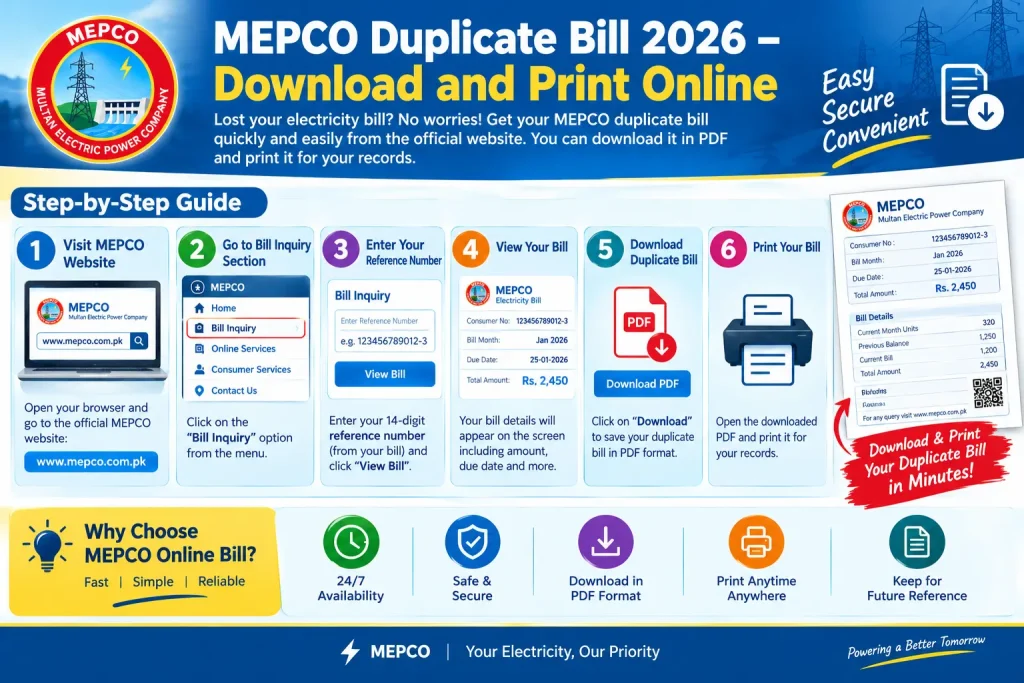
You generally need your reference number or Customer ID from a previous bill to search for your electricity bill online. Follow these steps:
- Open the official MEPCO online bill portal.
- Select the Reference Number or Customer ID option available on the page.
- Enter the required number carefully.
- Check that you have entered the correct details.
- Click the Search button to retrieve your bill.
- Wait for the available billing information to appear.
- Review the consumer details, billing month, due date, and payable amount.
If your current bill has been generated and is available in the system, you should be able to view it online. You do not need to wait for the paper copy to arrive before checking the online record.
How to Download MEPCO Duplicate Bill as PDF
Saving a digital copy is useful if you want to keep your bill on your mobile phone or computer. You can also use the PDF when you need to print another copy later.
Follow these steps:
- Open your bill through the official MEPCO billing portal.
- Look for a Print option or open your browser’s print menu.
- Select Save as PDF in the printer destination options.
- Choose the folder where you want to save the file.
- Click Save and confirm that the PDF has been downloaded.
On a Windows computer, you can usually open the print menu by pressing Ctrl + P. On a mobile phone, open your browser menu and look for Print or a compatible sharing option.
The exact menu names may vary depending on your browser and device.
How to Print Your MEPCO Electricity Bill
If you need a paper copy, first open your available bill online. Select Print and choose your connected printer.
Before printing, check the preview to ensure the page is complete and readable. The reference number, consumer details, billing information, payable amount, due date, and payment section should be visible where provided.
If you do not have a printer at home, save the bill as a PDF and take the file to a printing shop.
A duplicate copy is intended to reproduce the existing bill. It does not mean that you should pay the same bill twice. Always check your payment status and keep your payment receipt.
Where to Find Your MEPCO Reference Number
The reference number identifies your electricity connection for online bill searches. You can usually find it in the upper section of a previous MEPCO electricity bill.
If you have an old bill, photograph, or saved PDF, use it to locate the number. Enter the digits carefully and follow the format requested by the online portal. If the portal provides a separate U/R selection, match it to the details printed on your bill.
You may also use the Customer ID option if you have the required customer information.
If you cannot find either number, contact your local MEPCO customer service centre for assistance. Avoid sharing photographs of your bill publicly because they may contain personal or account information.
What Information Should You Check on Your Bill?
After opening your MEPCO Duplicate Bill, review the following details before making a payment:
- Consumer information: Confirm that the bill belongs to your electricity connection.
- Reference number: Make sure the connection details match your previous bill.
- Billing month: Check the period covered by the bill.
- Meter readings and units: Review the recorded consumption where shown.
- Due date: Note the payment deadline.
- Payable amount: Check the amount due and any listed arrears or adjustments.
- Payment status: If the portal or your payment provider displays status information, check whether payment has been recorded.
If you notice an incorrect reading, unexpected charge, or other discrepancy, contact MEPCO through its official complaint channels instead of assuming the online bill is correct.
MEPCO Duplicate Bill Not Showing? Try These Fixes
Sometimes a bill may not appear immediately. Try the following solutions:
1. Check the number you entered. A missing or incorrect digit can prevent the portal from finding your account.
2. Choose the correct search option. Make sure you are entering a reference number in the reference field or a Customer ID in the appropriate field.
3. Check whether the new bill is available. If the latest billing record has not yet been generated or uploaded, it may not appear online.
4. Try again later. Temporary technical issues or heavy traffic may affect the service.
5. Contact MEPCO if the problem continues. Use the company’s official website or customer service facilities if your information remains unavailable or appears incorrect.
You can also keep a previous bill saved so that you have the required account details for future searches.
Can You Pay Your Bill Using a Duplicate Copy?
A duplicate bill helps you access the same billing information when the original paper copy is missing. You can use the available payment details to pay through a supported bank, mobile banking service, or other authorised payment channel.
Before confirming a transaction, verify the consumer information and payable amount. Follow the payment provider’s instructions and save the transaction receipt for your records.
If you have already paid, check your transaction confirmation before paying again. If the payment is not reflected after the expected processing period, contact the payment provider or MEPCO for assistance.
Frequently Asked Questions
How can I get my MEPCO Duplicate Bill online?
Visit the official PITC MEPCO bill portal, enter your reference number or Customer ID, and search for the available bill. You can then print it or save it as a PDF.
Can I download my MEPCO bill on my mobile phone?
Yes. Open the official billing portal in your mobile browser. Once the bill appears, use the available print, save, or sharing options supported by your device.
Can I print a duplicate MEPCO bill at home?
Yes, if you have a working printer. Open the bill, select Print, check the preview, and print the page. Otherwise, save the PDF and print it at a local shop.
What should I do if my MEPCO bill is not available?
Check your reference number or Customer ID, verify the selected search option, and try again later. If the bill remains unavailable, contact MEPCO customer service.
Is a duplicate bill the same as the original bill?
It is a copy of the available billing record, rather than a new bill. Review the details and payment status before making any payment.
Conclusion
Getting a MEPCO Duplicate Bill online can help when your paper bill is lost, delayed, or damaged. Use the official PITC portal to find your available bill, review the due date and payable amount, and save or print a copy for your records.
For accurate billing information, always verify the consumer details before payment. If your bill is missing or contains incorrect charges, contact MEPCO through its official website or customer service facilities for further assistance.